Optometry exam templates that follow your workflow
Jelo lets practices and providers create reusable optometry exam templates. Arrange the exam outline, choose visible and required fields, add custom questions and include diagnostic tests. Clinicians document the actual findings and review the encounter before signing.
Product guide updated
$300/month per location or $3,000/year per location.
40-minute demo · Unlimited doctors and staff at each paid location
Create, publish and use an exam template
- 01
Start with an exam type
In Settings → Exam Templates, create a practice template or a provider-owned copy. Start from the standard exam sections or a provider’s existing preferences, then give the template a name your team will recognize.
- 02
Arrange the documentation
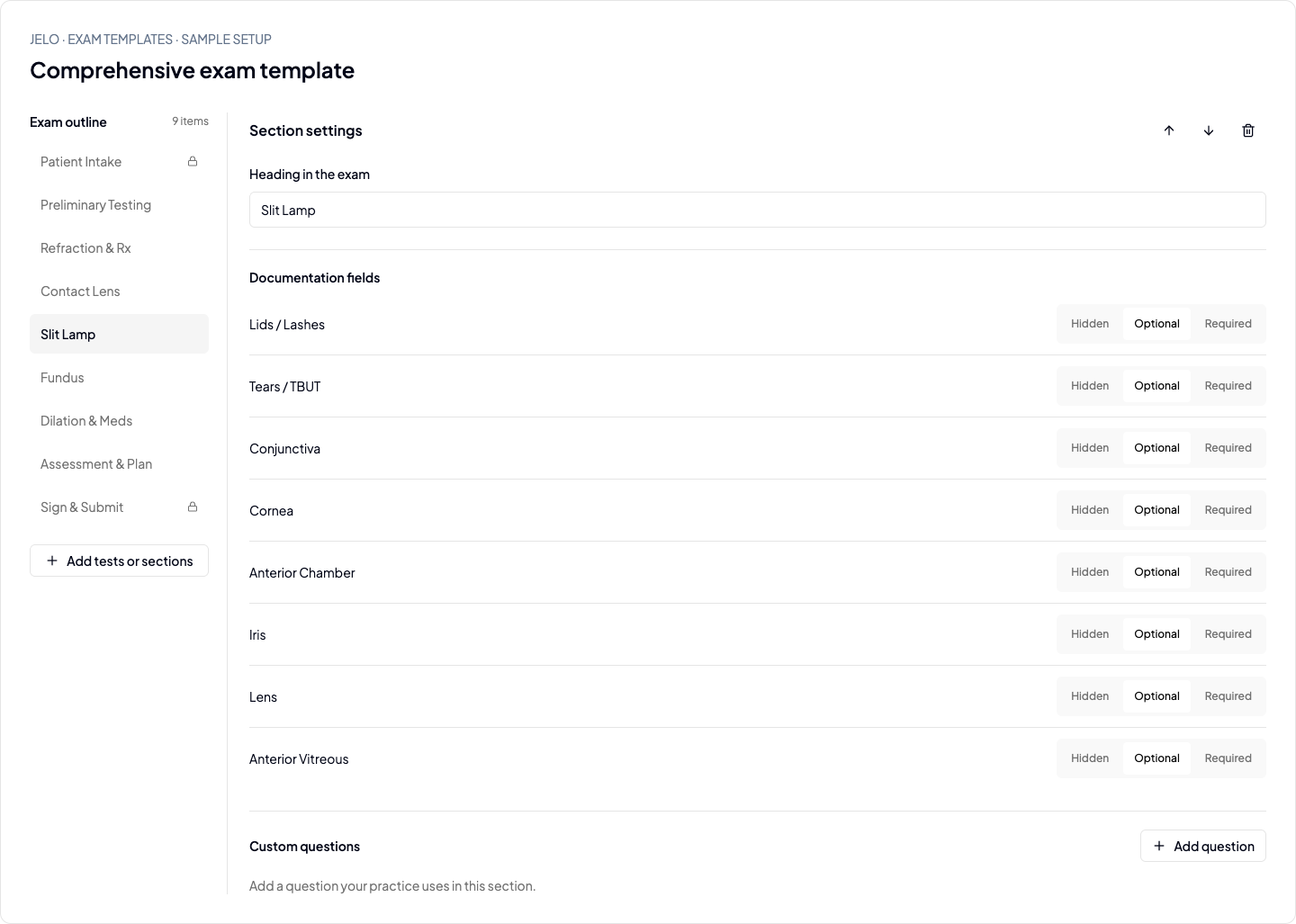
Reorder and rename sections, hide supported fields or make them required, and add custom section questions. Required identity and sign-off sections remain present, with Sign & Submit at the end.
- 03
Include the tests you use
Add OCT Macula, OCT Optic Nerve Head, ERG, Retinal Photography or Visual Field from the test catalog. Set device and protocol preferences and preview the documentation fields. Findings, measurements and laterality are entered for the encounter.
- 04
Publish and choose a default
Save a draft, review it and publish it for the exam launcher. An explicit template selection takes priority; otherwise Jelo uses the provider default, then the practice default, then the existing exam layout and preferences.
- 05
Document, review and sign
Record the patient’s findings, assessment and plan. Add or repeat a test when needed. Review diagnoses, billing details and the final note before signing; changing a template later does not rewrite the template revision saved with an existing encounter.
Use a de-identified example from your practice during the demo. Confirm the workflow against your devices, payers, locations and account configuration.
Optometry-specific sections and field controls
Build around the visit you perform: comprehensive exams, contact lens encounters and specialty follow-ups. Depending on the exam type, the outline includes patient intake, preliminary testing, refraction and prescriptions, slit-lamp and fundus findings, assessment and plan, and sign-off.
- Use Hidden, Optional or Required choices for supported documentation fields.
- Add custom questions while preserving the core clinical fields needed by the encounter.
- Maintain shared practice templates alongside provider-owned preferences.
Template setup and patient findings stay separate
A template can prepare the order of work, required fields, device and protocol settings. It does not establish the patient’s test results. Test measurements, laterality, findings and completion need encounter-specific documentation.
- Providers explicitly choose OD, OS or OU when documenting a test.
- An added test can be completed, marked not performed or removed with a reason.
- Saved templates can include tests; additional or repeated tests can be added during the encounter.
- Normal shortcuts fill eligible blank fields and retain existing findings. Review every populated value before sign-off.
ICD-10, exam-level coding and clinician review
Template field requirements help organize documentation. They do not determine medical necessity, select an exam level or guarantee reimbursement. Review the encounter’s diagnoses and billing lines separately from the template layout.
- Confirm diagnosis selection and laterality against the documented assessment.
- Review the selected exam or procedure codes, modifiers and diagnosis links for the actual visit.
- Adding a diagnostic test to a template does not automatically create a billing charge.
- The clinician remains responsible for reviewing and signing the note. Template customization does not require an AI scribe.
Keep template changes out of historical encounters
Jelo saves the selected template revision with the encounter. Publishing a revised template changes the setup available to future encounters; it does not replace the saved layout of an existing visit. Review practice and provider defaults when rolling out a new version.
- Preview and review a draft before publishing it.
- Use a de-identified routine exam and a follow-up to validate field requirements.
- Check the report and prescription handoff as well as the on-screen outline.
Hear from practices using Jelo
Care Optica describes Jelo as “very intuitive” and “easy to learn.” Dr. James Sharp discusses getting comfortable with the system. Watch their own accounts of the experience.
Watch the customer stories →Questions before you choose
See how Jelo fits your practice.
Bring your workflow, current software and switching questions. We will review the fit, subscription and implementation scope together.
Build an exam template in your demo